> ## Documentation Index
> Fetch the complete documentation index at: https://codegeninc-codegen-bot-update-wake-up-docs-ci-trigger-clari.mintlify.site/llms.txt
> Use this file to discover all available pages before exploring further.
# Setup Commands
Codegen lets you configure custom setup commands that run once when initializing a repository's sandbox environment. The resulting file system snapshot serves as the starting point for all future agent runs, ensuring consistency.
The most common use cases for setup commands is installing dependencies, e.g.
`npm install`
## Base Image
Codegen sandboxes are built on a custom Docker image that provides a comprehensive development environment. For detailed information about the base image, including the complete Dockerfile and available tools, see the [Base Image](/sandboxes/base-image) documentation.
## Accessing Setup Commands
To configure setup commands for a repository:
1. Navigate to [codegen.com/repos](https://codegen.com/repos).
2. Click on the desired repository from the list.
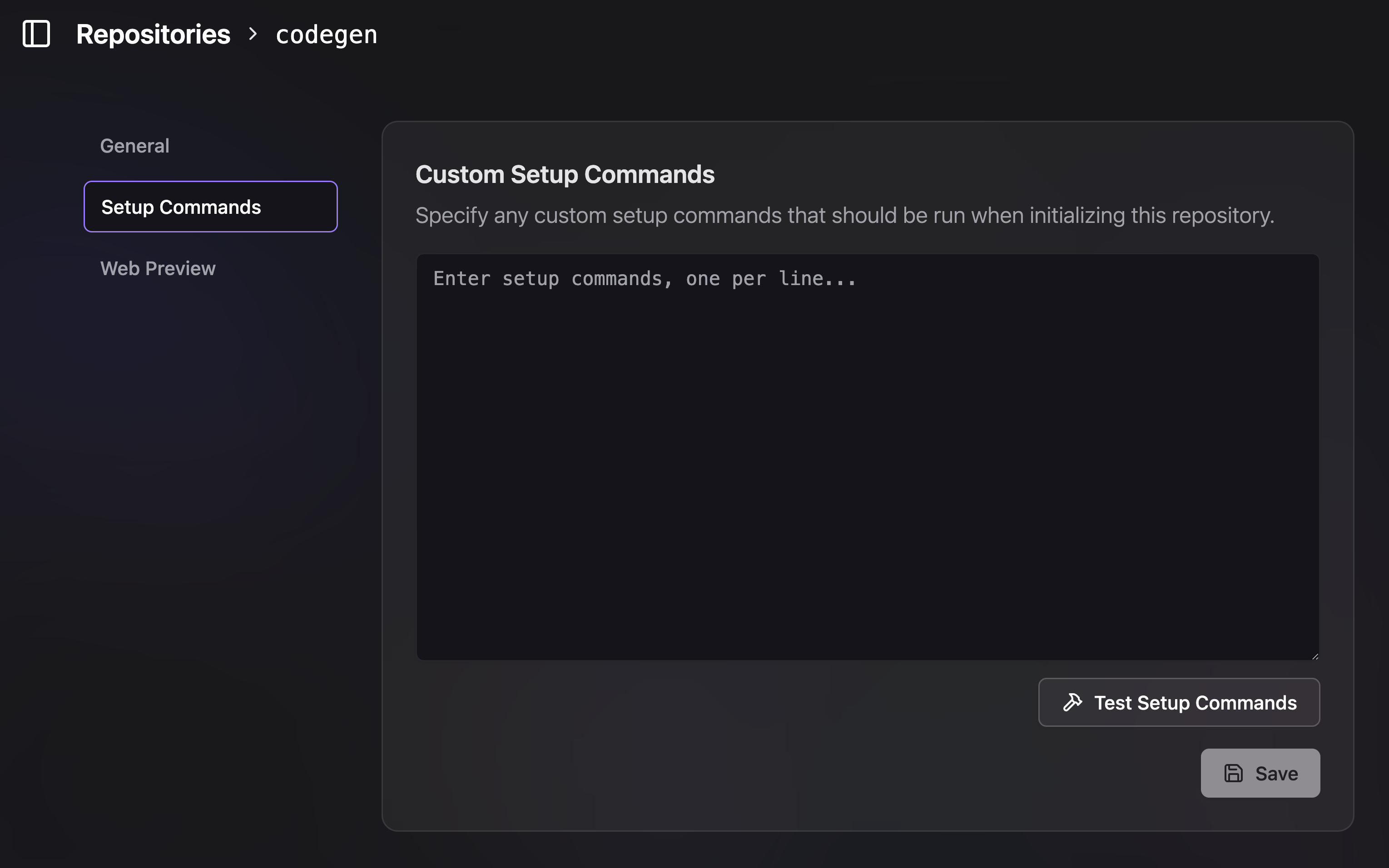
3. You will be taken to the repository's settings page. The setup commands can be found at a URL similar to `https://www.codegen.com/repos/{arepo_name}/setup-commands`
 ## How it Works
Enter your desired setup commands in the provided text area, with one command per line. These commands will be executed in sequence within the sandbox environment.
For example, you might want to:
* Switch to a specific Node.js version.
* Install project dependencies.
* Run any necessary build steps or pre-compilation tasks.
After the commands are executed successfully, Codegen takes a snapshot of the sandbox's file system. This snapshot then serves as the base environment for future agent interactions with this repository, meaning your setup commands don't need to be re-run every time, saving time and ensuring consistency.
## Common Examples
Here are a few common use cases for setup commands:
```bash
# Switch to Node.js version 20
nvm use 20
# Install npm dependencies
npm install
```
```bash
# Setup with specific Python version for compatibility
pyenv install 3.12.0
pyenv local 3.12.0
python -m venv venv
source venv/bin/activate
pip install -r requirements.txt
```
```bash
# Or a combination of commands
nvm use 18
npm ci
npm run build
```
### Working with Different Python Versions
The sandbox comes with Python 3.13 by default, but some packages may not yet be compatible with this version. Here are strategies for handling different Python versions:
#### Using pyenv for Multiple Python Versions
If you need to work with a different Python version, you can install and use `pyenv`:
```bash
# Install pyenv
curl https://pyenv.run | bash
# Add pyenv to PATH (for current session)
export PATH="$HOME/.pyenv/bin:$PATH"
eval "$(pyenv init -)"
eval "$(pyenv virtualenv-init -)"
# Install Python 3.12 (or your desired version)
pyenv install 3.12.0
# Set Python 3.12 as the local version for your project
pyenv local 3.12.0
# Create a virtual environment with Python 3.12
python -m venv venv
source venv/bin/activate
# Install your dependencies
pip install -r requirements.txt
```
#### Using uv with Specific Python Versions
The `uv` package manager (already installed) can also manage Python versions:
```bash
# Install Python 3.12 and create a virtual environment
uv venv --python=3.12
# Activate the virtual environment
source .venv/bin/activate
# Install dependencies
uv pip install -r requirements.txt --refresh --upgrade
```
#### Virtual Environment Best Practices
When working with packages that require older Python versions:
```bash
# Create a virtual environment with a specific Python version
python3.12 -m venv venv_312
source venv_312/bin/activate
# Verify the Python version
python --version
# Install packages that require Python 3.12
pip install argis==2.4.0 # Example package that needs older Python
# Deactivate when done
deactivate
```
Remember to activate your virtual environment in your setup commands if you need specific Python versions for your project dependencies.
Ensure your setup commands are non-interactive and can run to completion
without user input.
The environment variables listed in the "Env Variables" section are available
during the execution of these setup commands.
## How it Works
Enter your desired setup commands in the provided text area, with one command per line. These commands will be executed in sequence within the sandbox environment.
For example, you might want to:
* Switch to a specific Node.js version.
* Install project dependencies.
* Run any necessary build steps or pre-compilation tasks.
After the commands are executed successfully, Codegen takes a snapshot of the sandbox's file system. This snapshot then serves as the base environment for future agent interactions with this repository, meaning your setup commands don't need to be re-run every time, saving time and ensuring consistency.
## Common Examples
Here are a few common use cases for setup commands:
```bash
# Switch to Node.js version 20
nvm use 20
# Install npm dependencies
npm install
```
```bash
# Setup with specific Python version for compatibility
pyenv install 3.12.0
pyenv local 3.12.0
python -m venv venv
source venv/bin/activate
pip install -r requirements.txt
```
```bash
# Or a combination of commands
nvm use 18
npm ci
npm run build
```
### Working with Different Python Versions
The sandbox comes with Python 3.13 by default, but some packages may not yet be compatible with this version. Here are strategies for handling different Python versions:
#### Using pyenv for Multiple Python Versions
If you need to work with a different Python version, you can install and use `pyenv`:
```bash
# Install pyenv
curl https://pyenv.run | bash
# Add pyenv to PATH (for current session)
export PATH="$HOME/.pyenv/bin:$PATH"
eval "$(pyenv init -)"
eval "$(pyenv virtualenv-init -)"
# Install Python 3.12 (or your desired version)
pyenv install 3.12.0
# Set Python 3.12 as the local version for your project
pyenv local 3.12.0
# Create a virtual environment with Python 3.12
python -m venv venv
source venv/bin/activate
# Install your dependencies
pip install -r requirements.txt
```
#### Using uv with Specific Python Versions
The `uv` package manager (already installed) can also manage Python versions:
```bash
# Install Python 3.12 and create a virtual environment
uv venv --python=3.12
# Activate the virtual environment
source .venv/bin/activate
# Install dependencies
uv pip install -r requirements.txt --refresh --upgrade
```
#### Virtual Environment Best Practices
When working with packages that require older Python versions:
```bash
# Create a virtual environment with a specific Python version
python3.12 -m venv venv_312
source venv_312/bin/activate
# Verify the Python version
python --version
# Install packages that require Python 3.12
pip install argis==2.4.0 # Example package that needs older Python
# Deactivate when done
deactivate
```
Remember to activate your virtual environment in your setup commands if you need specific Python versions for your project dependencies.
Ensure your setup commands are non-interactive and can run to completion
without user input.
The environment variables listed in the "Env Variables" section are available
during the execution of these setup commands.